Wednesday, November 25, 2026

How to Download or Change Your Facebook Video Thumbnail (Best Size)
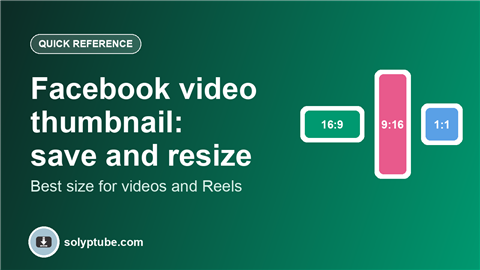
The thumbnail is the picture people see before they press play on your Facebook video or Reel. A clear thumbnail gets more people to watch, and a wrong size gets it cropped. This guide shows how to pick or change the thumbnail of your own video, how to save a copy of it, and which size to use.
The steps are for videos and Reels on your own profile or Page. Menu names change from time to time, so look for the closest option if yours is different.
What a thumbnail is on Facebook
For a video, the thumbnail is the still picture shown in the feed, on your Page and in search results. For a Reel, it is the cover picture shown on your profile grid and in the Reels tab. You can usually pick a frame from the video or upload your own picture.
How to choose a thumbnail when you post
- Start a new video or Reel and choose the file.
- Before you post, look for Thumbnail, Cover or Edit cover on the preview screen.
- Slide through the video and pick the frame you like, or choose the option to upload your own picture.
- Save the change, then post.
How to change the thumbnail of a video you already posted
- Open Meta Business Suite on a computer, or open the post on your Page.
- Find the video in your content list and open its details.
- Choose Edit, then look for the thumbnail or cover option.
- Pick another frame or upload a new picture, and save.
On a personal profile, the option may be in the three-dot menu of the post. If you cannot find it for an older video, check that you are signed in to the account that posted it.
The best thumbnail size
| Where it appears | Shape | Good size to start with |
|---|---|---|
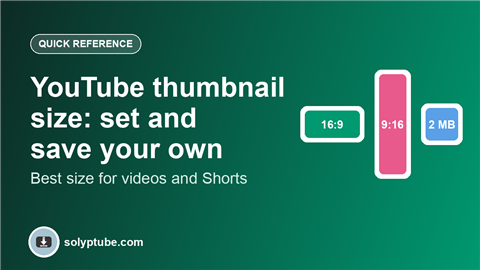
| Normal wide video | 16:9 (wide) | 1280 x 720 pixels |
| Reel | 9:16 (tall) | 1080 x 1920 pixels |
| Square feed video | 1:1 (square) | 1080 x 1080 pixels |
Use a JPG or PNG, and keep the main subject and any text away from the edges. Facebook can crop the picture differently in the feed and on your profile grid, so text close to the edge may be cut.
For more video sizes, see the best video size for Reels, Shorts and Snapchat.
How to save a copy of your own thumbnail
The simplest way is to keep the picture you used. If you made your thumbnail in a design app, save the original file there before you upload it. If you picked a frame from the video, you have these options:
- Take a screenshot of that frame on your phone or computer, then crop it.
- Open the original video file on your device, pause on the frame and save a still picture with your video player or editor.
- In Meta Business Suite, check the video details. Some options let you download or replace the cover picture.
If you do not have the original video any more, you can download your own videos with your account data. See how to download your Facebook data and videos.
A thumbnail from a video that is not yours
A thumbnail is the work of the person who made the video. Only save or use one if you have that person's permission, or if the picture is licensed for reuse. If you do have permission, the Facebook thumbnail downloader loads the thumbnail of a public video from its link.
Why my thumbnail looks cropped or blurry
- The picture has a different shape from the video, so Facebook crops it. Match the shape in the table above.
- The picture is too small and was stretched. Use a larger file.
- The picture is heavily compressed. Save it as a high-quality JPG or as a PNG.
- The text is too close to the edge. Keep a margin.
Frequently asked questions
How do I download the thumbnail of my own Facebook video?
Keep the original picture file you uploaded. If you picked a frame from the video, take a screenshot of that frame, or save a still from the original video file, then crop it to the right shape.
How do I change a Facebook video thumbnail after posting?
Open the video in Meta Business Suite, or in the post menu on your Page, choose Edit, then pick another frame or upload a new picture and save.
What size should a Facebook video thumbnail be?
For a normal wide video, 1280 x 720 pixels (16:9) is a good start. For a Reel, use 1080 x 1920 pixels (9:16). Keep text away from the edges.
Can I save the thumbnail of someone else's video?
Only with their permission, or if the picture is licensed for reuse. A thumbnail belongs to the person who made it.
Why can I not edit the thumbnail of my Reel?
The option can be missing for older posts, or when you are not signed in to the account that posted the Reel. Check the account first, then update the app. If it is still missing, the cover may only be editable before you post.