Friday, October 23, 2026

How to Export Your Telegram Chats and Media
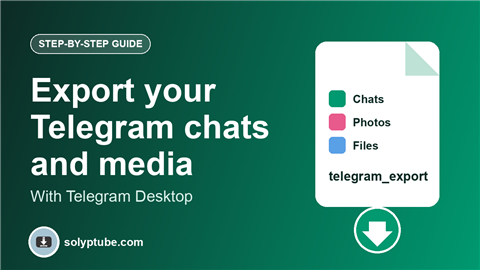
Telegram keeps your chats in the cloud, but sometimes you want your own copy: a backup of an important chat, the photos you shared, or the files you sent to yourself. Telegram has a built-in export tool in its desktop app. This guide shows how to use it, what to choose and how to keep the export safe.
The export gives you the data of your own account and the chats you are part of. Do not share or publish other people's private messages.
What you need
- Telegram Desktop on Windows, Mac or Linux. The export tool is in the desktop app.
- Enough free space on your computer. Media can be large.
- Your Telegram account logged in on that computer.
How to export your data
- Open Telegram Desktop.
- Click the menu (three lines), then Settings.
- Open Advanced, then Export Telegram data.
- Choose what to include: account information, contacts, chats, photos, videos, files and more.
- Choose the download path, which is the folder where the export will be saved.
- Choose the format: HTML or machine-readable JSON.
- Click Export and wait until it finishes.
What to choose
- Chats. Pick personal chats, private groups or channels you want. Leave the rest out to keep the export small.
- Media. Photos, videos, voice messages, stickers and files are separate options. You can set a size limit for files.
- Date range. You can export a part of the history only, if the tool offers it.
- Format. HTML opens in any browser, so it is the easiest to read. JSON is for programs.
Find your export
When the export is done, click Show my data or open the folder you chose. For an HTML export, open the file called export_results.html in your browser.
Keep the export safe
- It can contain private messages and files. Keep it in a private folder.
- Use disk encryption, or a password-protected archive, for a copy on a shared computer.
- Do not post or share chats that belong to other people.
Save a single file from a chat
If you only need one photo or file, you do not have to export everything. Open the chat, right-click the item (or long press on a phone) and choose Save as or Save to gallery, depending on your device.
If the export fails or is too slow
- Choose fewer chats, or turn off large media types.
- Lower the file size limit.
- Make sure the folder has free space and that the computer stays awake.
- Update Telegram Desktop, then try again.
Backing up other apps too? See how to download your X (Twitter) data and your TikTok data.
Frequently asked questions
How do I export my Telegram chats?
In Telegram Desktop, open Settings, then Advanced, then Export Telegram data. Choose the chats and media, pick a folder and a format, and click Export.
Can I export Telegram from my phone?
The built-in export tool is in the desktop app. On a phone you can save single photos and files from a chat.
Does exporting delete my chats?
No. It only creates a copy on your computer.
Which format should I choose, HTML or JSON?
Choose HTML if you want to read your chats in a browser. Choose JSON if you plan to use the data with another program.
Is it safe to share my export?
No, treat it as private. It can contain messages and files from other people.