Friday, October 23, 2026

How to Go Live on Facebook Using RTMP with GoLiveIndia
How to Go Live on Facebook Using RTMP with GoLiveIndia
GoLiveIndia gives you the flexibility to stream live on Facebook using RTMP (Real-Time Messaging Protocol). This is a great option if you’re using your own encoder or prefer a manual, customizable setup for your livestream.
Whether you're a content creator, brand, or business, streaming via RTMP allows more control over your video quality, layout, and audio, making it a powerful option for high-quality broadcasts.
What is RTMP?
RTMP is a live video streaming protocol that breaks your video feed into smaller packets for smoother transmission over the internet. These packets are then reassembled in real time on the viewer’s screen, resulting in a reliable, high-quality livestream.
RTMP was originally designed for Flash video, but it’s still widely used today by major streaming platforms—including Facebook, YouTube, and Twitch. For added security, RTMPS (the encrypted version of RTMP) ensures your stream is protected during transmission.
Getting Started with GoLiveIndia
Before you begin streaming, make sure you have a GoLiveIndia account.
Log In or Sign Up
Already have an account?
Open the GoLiveIndia website or app.
Log in using your email and password, or use social login (Google, Facebook, or Apple).
New to GoLiveIndia?
Click on Create Account.
Fill in your name, email address, password, and confirm your password.
Complete the signup process and you're ready to go.
How to Get Your Facebook Stream Key
To stream on Facebook using RTMP, you need two things: a Stream URL and a Stream Key. Here's how to get them:
On Desktop Browser
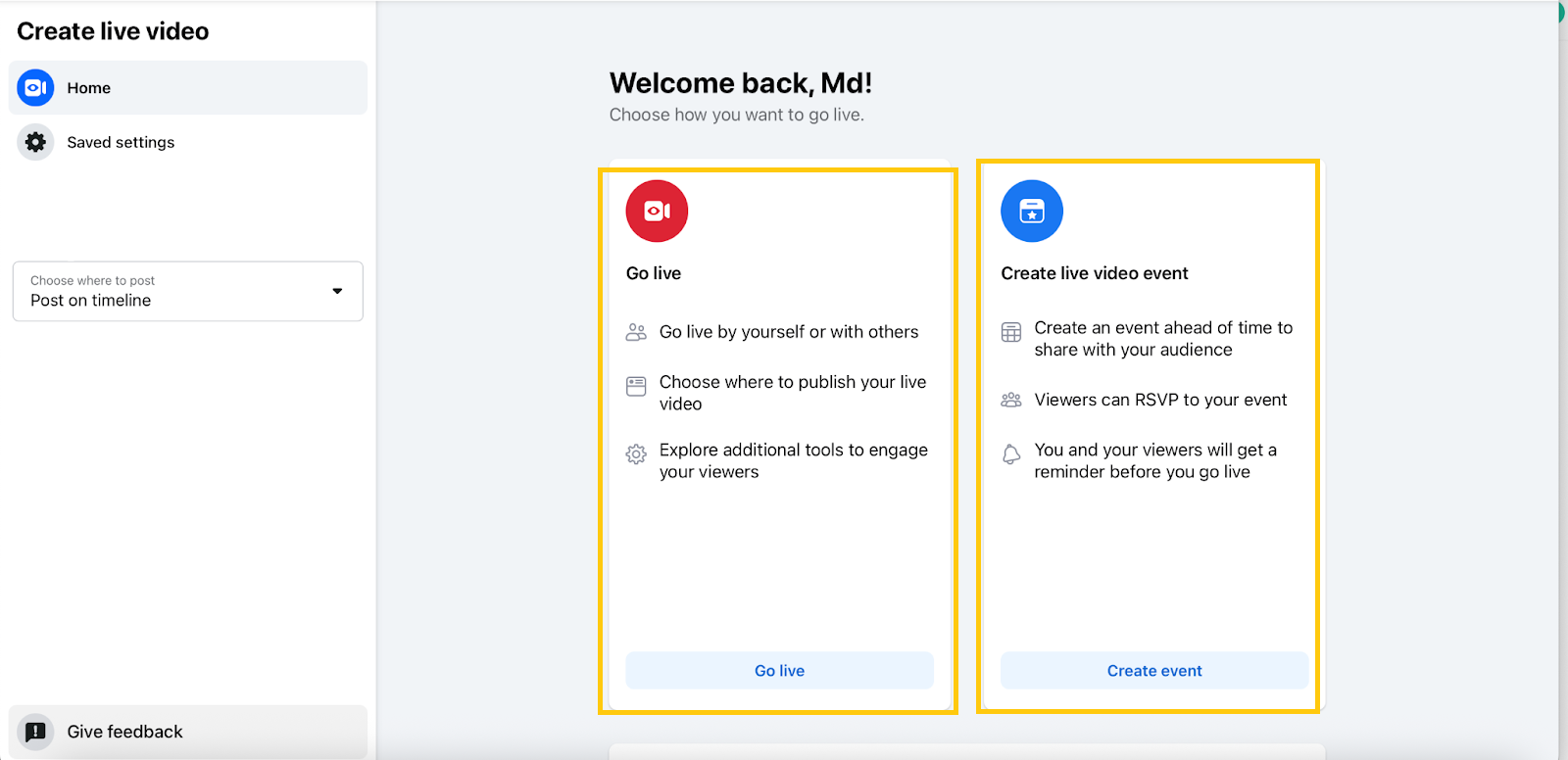
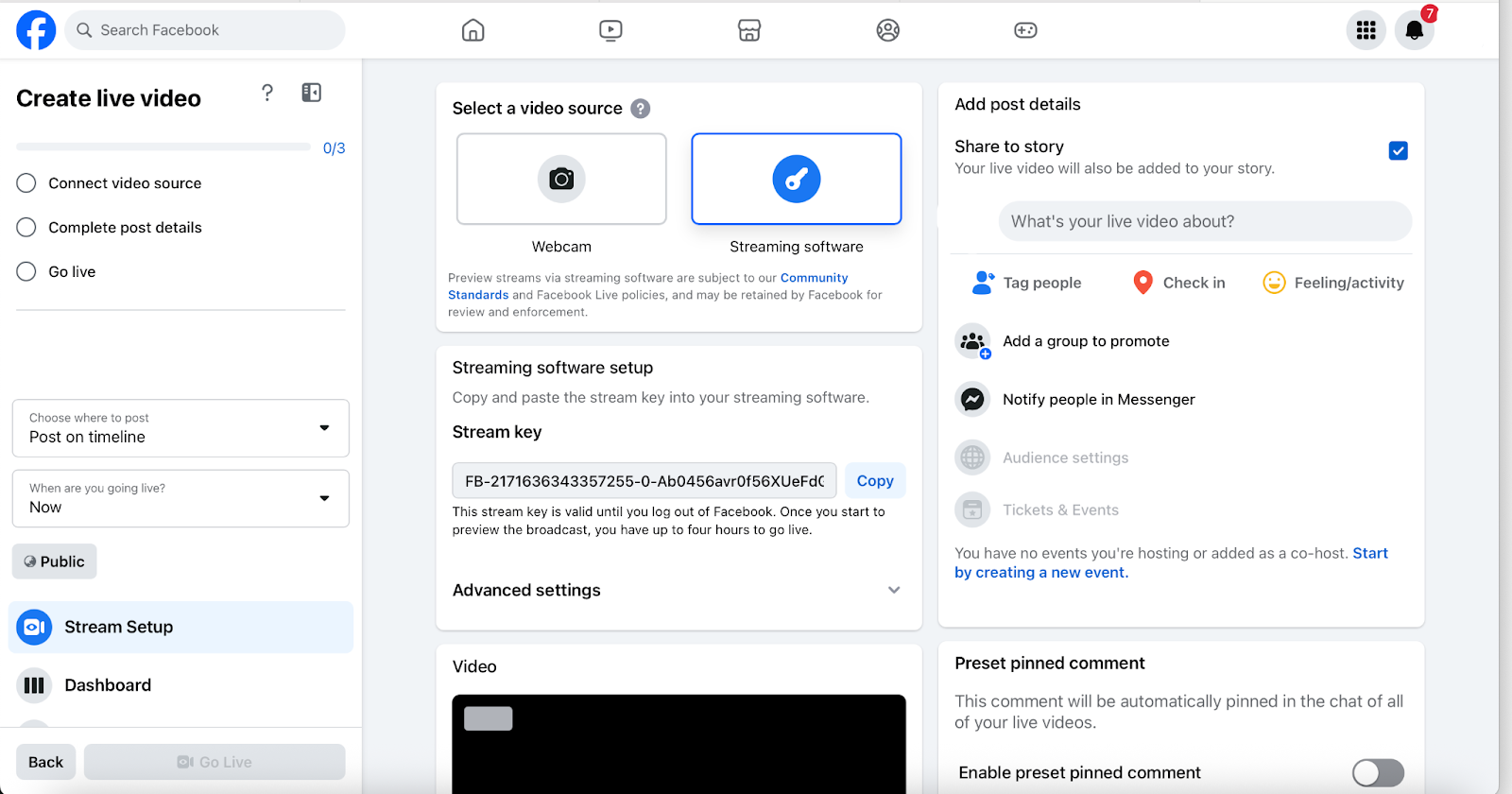
Go to Facebook Live Producer.
Select GoLive.
Under “Select a video source” select Streaming Software.
Copy the Stream URL and Stream Key shown on the screen.
(Optional) Enable “Use a persistent stream key” if you want to reuse it for future streams.
Leave this page open—you’ll return to it once you start streaming from GoLiveIndia.
On Mobile Browser:
Go to Facebook Live Producer.
Open Chrome or Safari or Edge etc on your mobile phone.
Choose Go Live.
Under “Select a video source” select Streaming Software.
Copy the Stream URL and Stream Key shown on the screen.
(Optional) Enable “Use a persistent stream key” if you want to reuse it for future streams.
Leave this page open—you’ll return to it once you start streaming from GoLiveIndia.
Once you have the credentials, return to GoLiveIndia.
Streaming on Facebook Using RTMP in GoLiveIndia
Once you’ve copied your Stream URL and Key from Facebook:
Open the GoLiveIndia website or app.
Navigate to the RTMP setup section.
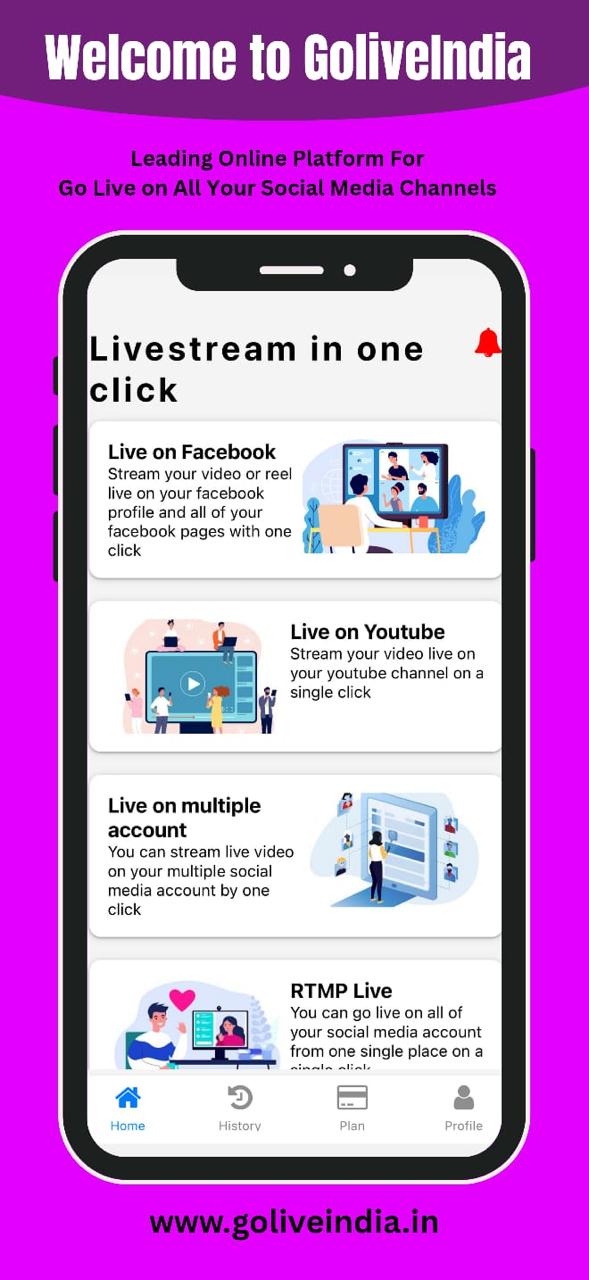
Select Facebook as the platform.
Paste your RTMP URL/Stream URL and RTMP Key/Stream Key into the required fields.
Add a title and description for your livestream.
Click Live Now.
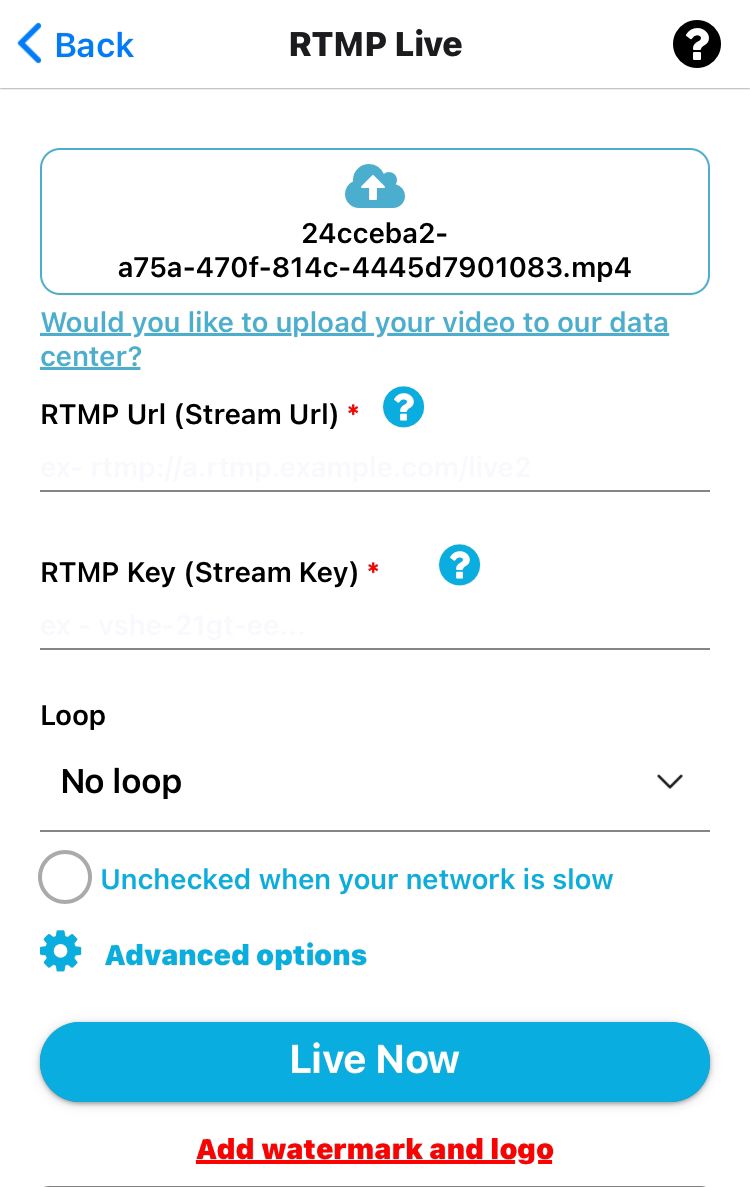
Your video will now begin broadcasting to your Facebook Page or Profile in real time.
Frequently Asked Questions
1. Do I need to use Facebook’s mobile app?
No. To access your Stream Key, it’s better to use a mobile browser (like Chrome or Safari) and visit facebook.com/live/producer. This gives you full access to stream settings.
2. Is RTMP streaming secure?
Yes. GoLiveIndia uses RTMPS (the secure version of RTMP) to encrypt your stream and protect your data in transit.
3. Can I stream to my Facebook Page instead of my personal profile?
Absolutely. When setting up your stream in Facebook Live Producer, you can choose whether to stream to your Timeline, Page, or Group.
4. Can I schedule a livestream on Facebook with RTMP?
Yes. You can schedule a live event in Facebook Live Producer and use the generated stream key at the scheduled time via GoLiveIndia.
5. Will my stream key expire?
By default, Facebook generates a new stream key for every session. However, you can select “Use a persistent stream key” to reuse the same key for future streams.
6. What’s the difference between RTMP and direct Facebook login in GoLiveIndia?
The direct login method is faster and doesn't require a stream key. RTMP offers more control and is ideal for advanced setups or when using third-party encoders.
7. Do I need OBS or another encoder to use RTMP with GoLiveIndia?
No. GoLiveIndia handles the encoding for you. But if you already use external software, you can point it to GoLiveIndia or use GoLiveIndia purely as your RTMP source.
Need Help?
Want a step-by-step walkthrough with visuals?
Watch our full tutorial video here: