Friday, October 23, 2026

How to Go Live on Twitch Using GoLiveIndia
How to Go Live on Twitch Using GoLiveIndia
Twitch is one of the world's leading platforms for live content—whether you're gaming, performing music, teaching, or just connecting with your audience. Thanks to GoLiveIndia, streaming on Twitch has never been easier. You don’t need OBS, stream keys, or complicated software setups. With just your mobile device and the GoLiveIndia app, you can go live on Twitch in minutes.
In this step-by-step guide, we’ll show you how to use GoLiveIndia to stream on Twitch effortlessly.
Why Use GoLiveIndia to Stream on Twitch?
GoLiveIndia removes the technical barriers often associated with streaming. With built-in Twitch integration and RTMP support, the app allows you to:
Go live on Twitch directly from your mobile phone
Stream pre-recorded gameplay or content
Re-stream your video content on a loop (great for short games or highlight reels)
Skip the hassle of setting up stream keys and software
Monitor and manage your live stream with ease
Broadcast in high quality from anywhere
Whether you're a beginner or a seasoned streamer, GoLiveIndia is a fast, user-friendly way to share your content on Twitch.
Step-by-Step: How to Go Live on Twitch with GoLiveIndia
Step 1: Install the GoLiveIndia App
First, download the GoLiveIndia app to your device:
Android: Available on the Google Play Store
iOS: Available on the Apple App Store
Web: www.goliveindia.in
Once installed, launch the app and sign in using any of the available options: Google, Facebook, Apple, or your email address.
Step 2: Connect Your Twitch Account
Before you can stream, you'll need to link your Twitch account:
Go to the Linked Accounts section in the app or on the website
Select Twitch
Log in using your Twitch credentials
Grant GoLiveIndia the required permissions
Once connected, your Twitch account will be ready for live streaming.
Step 3: Create a New Live Stream
After logging in:
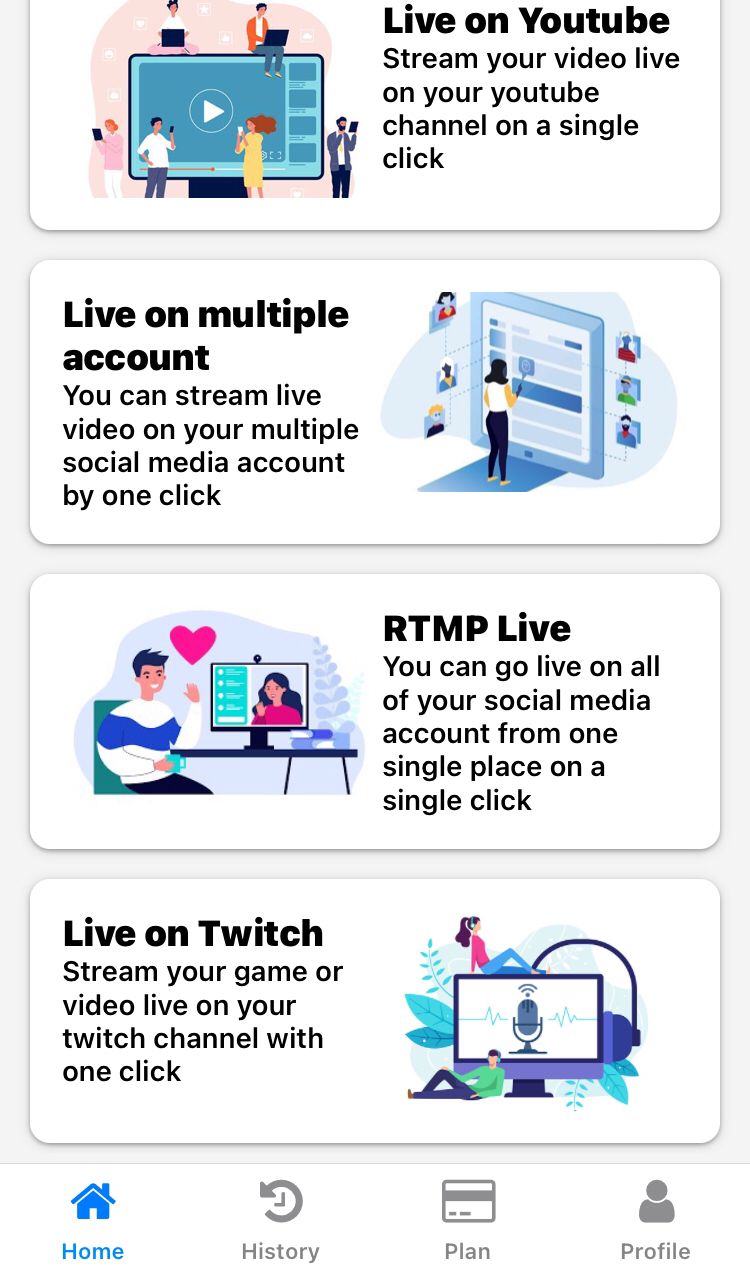
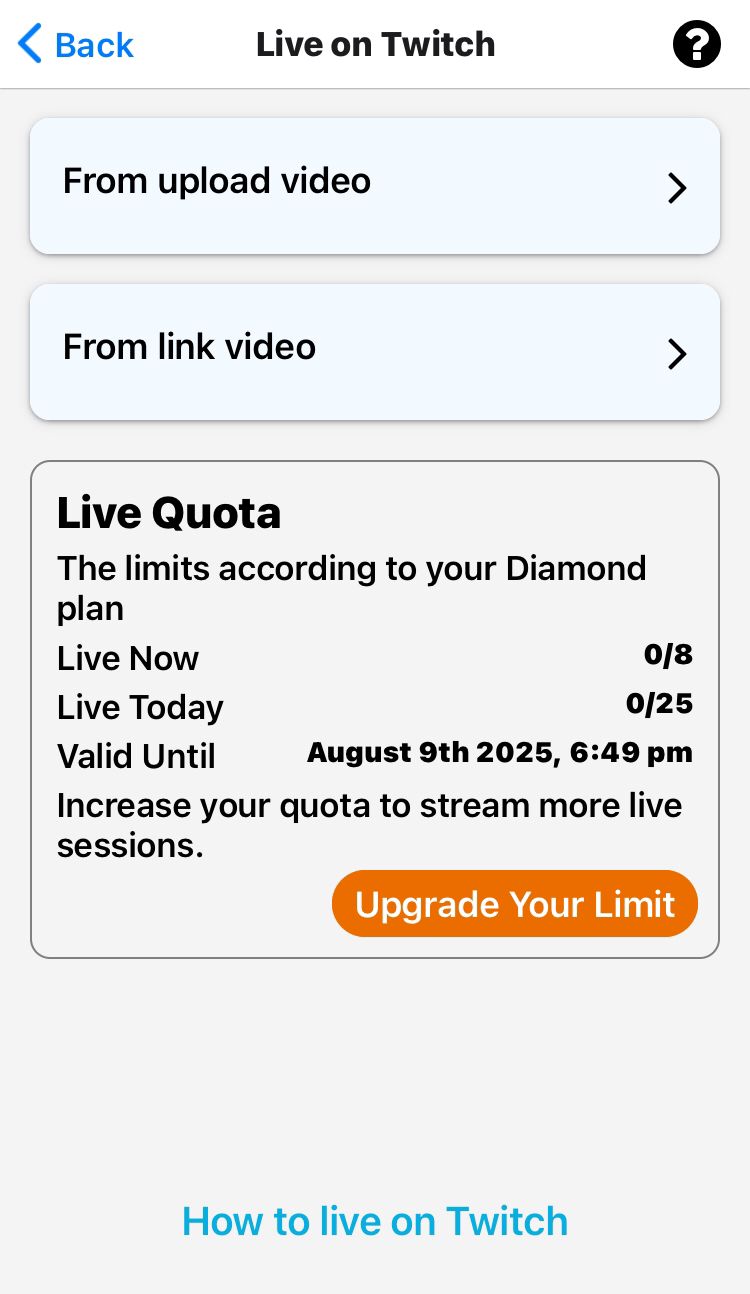
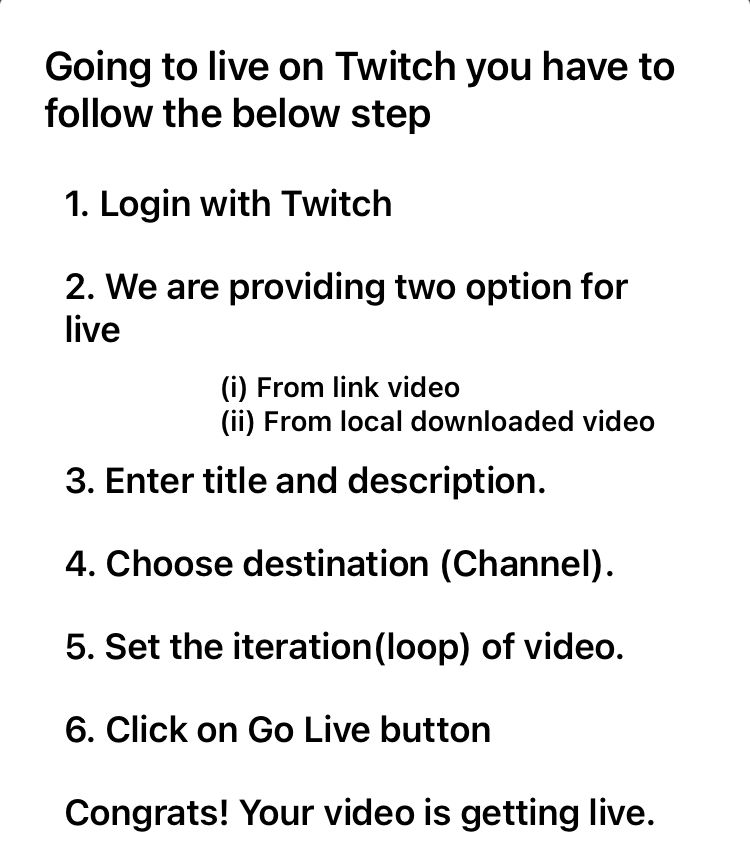
Tap “Live on Twitch” from the dashboard
Choose your preferred streaming method:
Upload a video from your device
Stream from a video link (e.g., YouTube, Vimeo)
Live stream directly using your phone’s camera in real time
Step 4: Choose Your Twitch Streaming Destination
Select your Twitch account as the destination
Set your stream title, description, and category
Choose your video resolution (480p, 720p, 1080p)
If you’re using a recorded video, select the loop count (how many times it should repeat)
Once you're ready, tap “Live Now”. Your stream will begin instantly on your Twitch channel.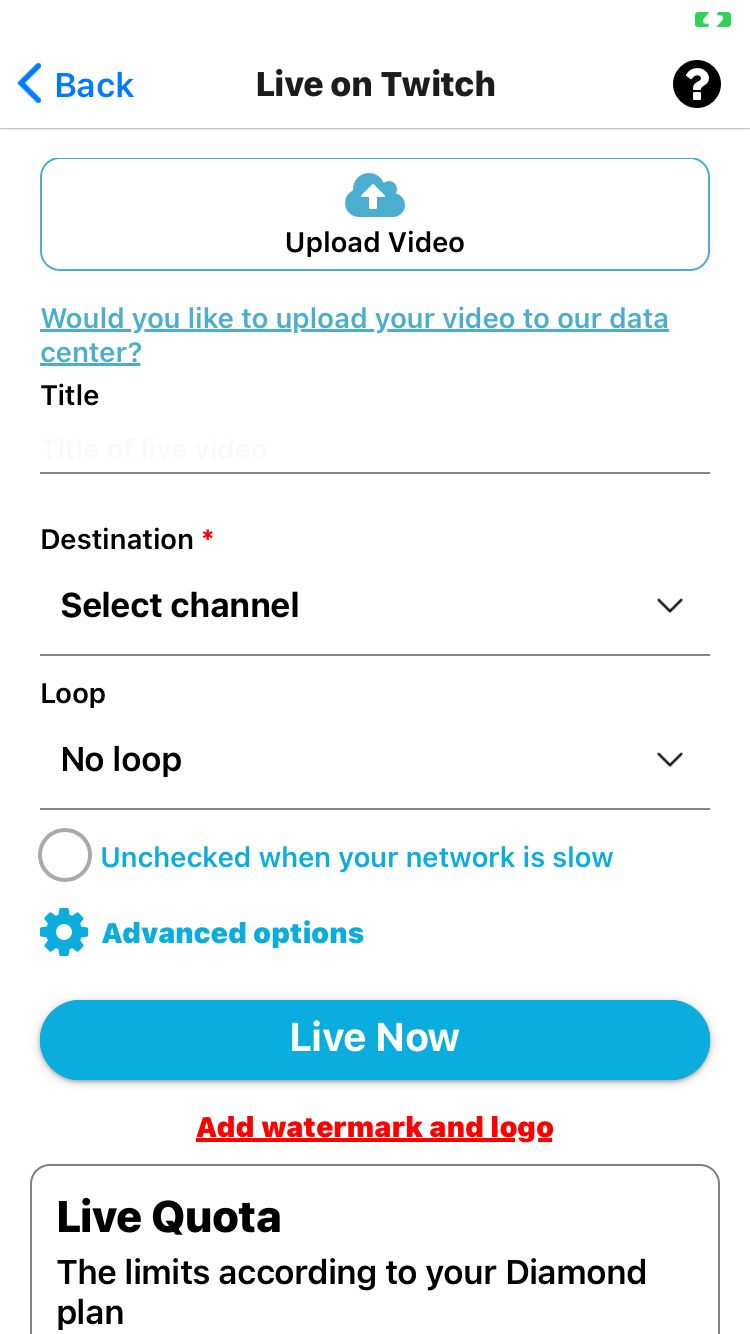
Step 6: End and Review Your Stream
When you're done streaming:
Tap End Stream
You’ll see a summary of your broadcast
The stream will be available in your Twitch video history (if enabled in Twitch settings)
Frequently Asked Questions (FAQ)
Q1: Do I need a Twitch stream key to go live from GoLiveIndia?
No. GoLiveIndia handles all stream key and RTMP integration automatically once your Twitch account is connected.
Q2: Can I stream on multiple platforms at once?
Yes. GoLiveIndia supports multistreaming. You can stream simultaneously on Twitch, YouTube, Facebook, and other platforms.
Q3: Is streaming on Twitch with GoLiveIndia free?
Absolutely. Creating an account and going live is free. However, premium features like higher resolution, multistreaming, and ad-free streaming are available with paid plans.
Q4: Will my Twitch followers be notified when I go live?
Yes. Twitch will send notifications to your followers as usual when you start streaming through GoLiveIndia.
Q5: Can I customize my stream layout with overlays and scenes?
GoLiveIndia offers basic customization like titles and orientation. For advanced layouts, overlays, or scene switching, desktop software is still recommended.
Final Thoughts
You don’t need expensive equipment or a complex setup to start streaming on Twitch. With GoLiveIndia, you can begin your live journey with just a mobile device and a few taps. Whether you want to broadcast your gameplay, share your music, or simply connect with an audience—GoLiveIndia makes it smooth, simple, and accessible for all.
Start streaming on Twitch today—anytime, anywhere—with GoLiveIndia.