Friday, October 23, 2026

How to Stream to Amazon Live Using GoliveIndia
How to Stream to Amazon Live Using GoLiveIndia
Amazon Live is a powerful tool for influencers, sellers, and vendors to showcase products in real-time directly on the Amazon platform. If you're part of the Amazon Influencer Program or a registered brand owner, you can host interactive live sessions to engage shoppers and boost conversions.
In this guide, we’ll walk you through how to stream to Amazon Live using GoLiveIndia via a Custom RTMP connection. This method enables you to broadcast using pre-recorded videos, live camera feeds, or external video links — all from the GoLiveIndia app or web dashboard.
Why Use GoLiveIndia for Amazon Live Streaming?
GoLiveIndia makes it easy to go live on multiple platforms — including Amazon Live — without complex streaming setups like OBS. Here's why it's a great choice:
Stream from mobile or desktop with a few clicks
Upload pre-recorded videos or go live using your camera
Add Amazon Live as a Custom RTMP destination
Schedule your stream and repeat or loop product demos
No technical setup or encoder required
Who Can Stream on Amazon Live?
To stream on Amazon Live, you must meet one of the following eligibility criteria:
Be part of the Amazon Influencer Program with an approved storefront
Be a brand owner using Amazon Seller Central
Be a vendor with an active Amazon Store
You’ll also need the Amazon Live Creator app, which is available for iOS devices (iPhone and iPad).
Step-by-Step Guide: Streaming to Amazon Live with GoLiveIndia
Step 1: Set Up a Live Stream in the Amazon Live Creator App
Open the Amazon Live Creator app and sign in with your seller/vendor credentials.
Tap the "+" (plus) button to create a new stream.
Fill in the required details:
Stream Title
Thumbnail Image
Featured Products
Under Settings, tap Video Source and choose External Camera.
Tap Get URL and Stream Key.
Save these credentials securely. You’ll need them to connect GoLiveIndia.
Step 2: Add Amazon Live as a Destination on GoLiveIndia
Go to your GoLiveIndia Dashboard (on app or website).
Click on Destinations or Linked Platforms.
Tap Add Platform, then select Custom RTMP.
In the form:
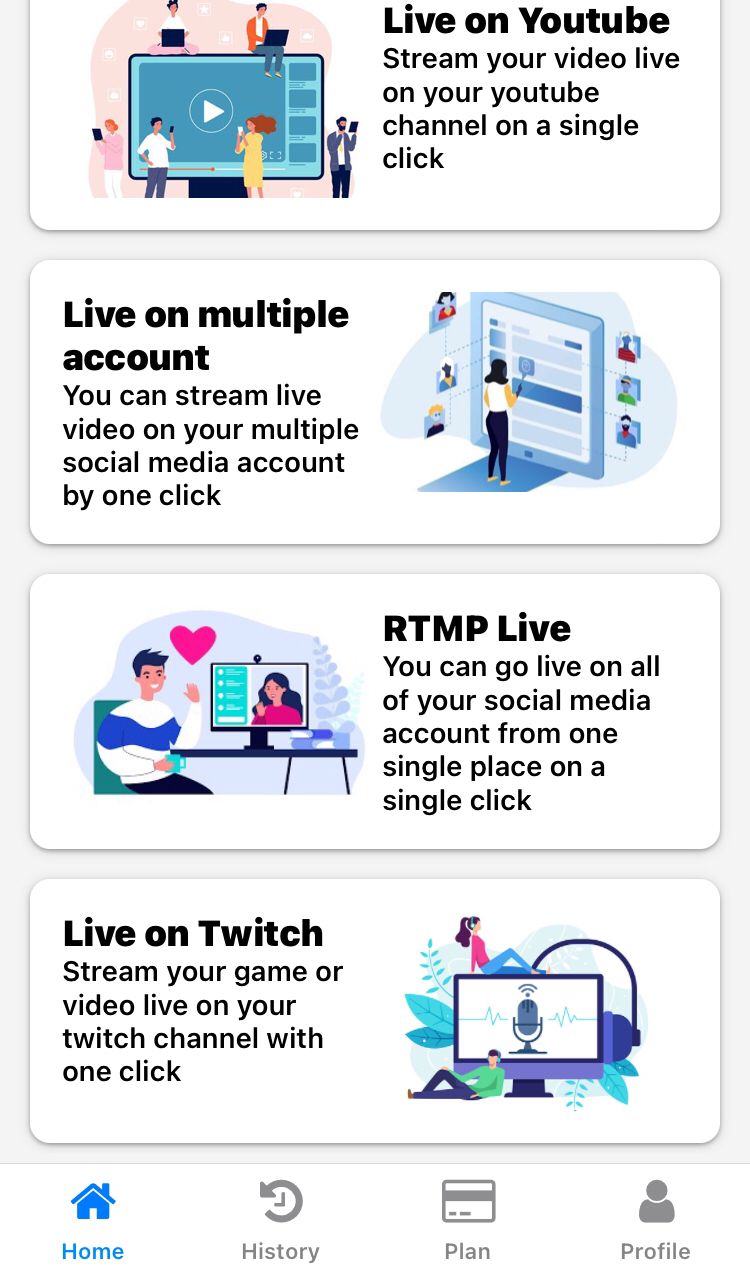
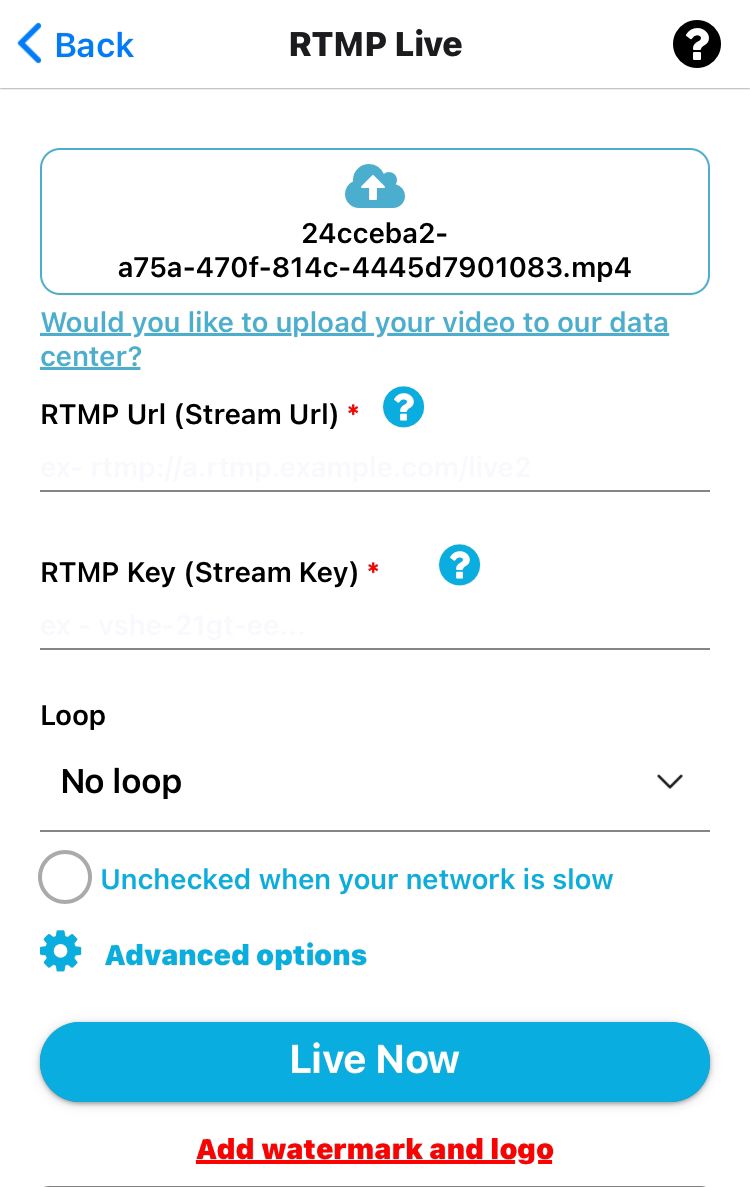
RTMP URL: Paste the URL copied from Amazon Live
Stream Key: Paste the stream key
Give it a recognizable name like “Amazon Live” and click Save.
Step 3: Choose How You'll Go Live on Amazon
With Amazon Live now added as a destination, you can create a stream:
Click Create Stream in your GoLiveIndia dashboard.
Choose your streaming mode:
Upload a video
Paste a video link
Use your phone/computer camera
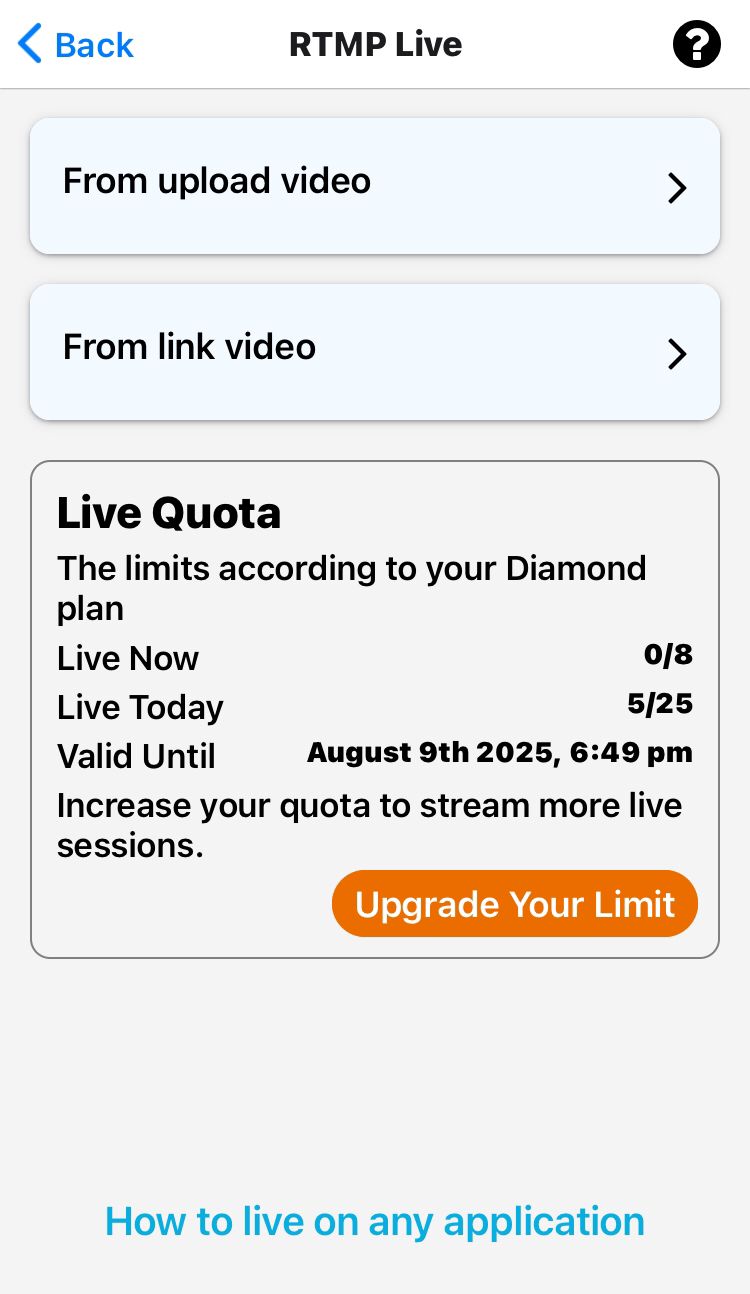
Select Amazon Live as your platform.
Configure your stream settings (resolution, looping, etc.).
Click Go Live.
Step 4: Preview and Go Live on Amazon
Open the Amazon Live Creator App again.
Tap the stream you created and tap Preview.
Once your stream appears, tap Go Live to begin broadcasting.
Your stream from GoLiveIndia will now appear on your Amazon Live page.
Step 5: Properly End Your Live Stream
When you're done:
First, tap Stop inside the Amazon Live Creator app.
Then, end the stream on GoLiveIndia.
This ensures a smooth shutdown of your stream and prevents cutoff issues.
HOW TO LIVE ON YOUTUBE WITH GOLIVEINDIA
HOW TO LIVE ON FACEBOOK WITH GOLIVEINDIA
HOW TO LIVE ON YOUTUBE USING RTMP WITH GOLIVEINDIA
HOW TO LIVE ON FACEBOOK USING RTMP WITH GOLIVEINDIA
HOW TO LIVE ON INSTAGRAM WITH GOLIVEINDIA
HOW TO LIVE ON TELEGRAM WITH GOLIVEINDIA
HOW TO LIVE ON X WITH GOLIVEINDIA
HOW TO LIVE ON LINKEDIN WITH GOLIVEINDIA
Recommended Amazon Live Stream Settings
To ensure the best quality, use the following recommended settings in GoLiveIndia:
Resolution: 1280x720 (HD)
AVC Level: 3.1
Keyframe Interval: Max 2 seconds
Frame Rate: 30 FPS recommended
Audio: Stereo, 96-128 kbps AAC
Common Questions (FAQ)
Is streaming to Amazon Live with GoLiveIndia free?
Yes, GoLiveIndia supports Custom RTMP in both free and paid plans. Amazon Live also does not charge to go live.
Does Amazon chat show up in GoLiveIndia?
No. Amazon chat messages will not appear in GoLiveIndia. You must monitor viewer comments inside the Amazon Live Creator app.
Can I leave my chat open after the stream ends?
Yes. Amazon allows you to leave your chat open to respond to questions or click "End Chat" when ready.
What devices support Amazon Live Creator?
The Amazon Live Creator app is available for iPhone. While it works on iPad, the experience is not fully optimized.
Amazon Live is one of the best platforms for influencers and sellers to showcase their products in real-time. With GoLiveIndia, you can stream with minimal setup, no extra software, and full control over how and when you broadcast.