Friday, October 23, 2026

How to Download Your Own YouTube Videos
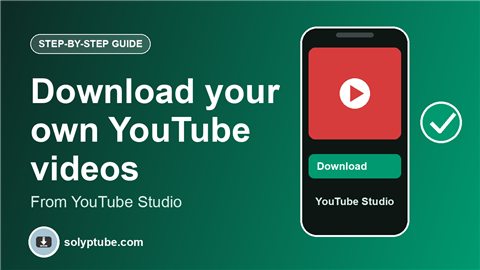
You uploaded a video to YouTube, and now the original file is gone from your computer or phone. It happens often after a phone change or a disk problem. The good news is that YouTube lets you download videos that you uploaded to your own channel. This guide shows how to get one video, or all of them.
These steps work for videos on your own channel. They do not work for other people's videos.
Which way is right for you?
- One or a few videos: download them from YouTube Studio.
- All your videos and channel data: request a copy with Google Takeout.
- Watching other people's videos offline: see how to watch YouTube videos offline.
Download one video from YouTube Studio
- Go to YouTube Studio (studio.youtube.com) and sign in to the account that owns the channel.
- Click Content in the left menu.
- Move your mouse over the video you want, then click the three dots (Options).
- Click Download.
- The video file is saved to your computer, usually as an MP4.
You can also open a video's details page in Studio and find the same option in the three-dot menu there.
Download all your videos with Google Takeout
- Go to Google Takeout (takeout.google.com) and sign in.
- Click Deselect all, then scroll down and tick YouTube and YouTube Music.
- Click All YouTube data included and choose Videos only, if you do not need the rest.
- Choose the file type, the size of each part and how you want to receive it, then click Create export.
- Wait for the email from Google, then download the files.
A channel with many videos can create a very big export, so check your free space first.
Why you do not see a Download option
- You are signed in with a different account than the channel owner.
- You are using the YouTube app, not the website version of Studio.
- The video is still processing or is a Short in a format that does not show the option.
- The channel is managed by someone else and your role does not include downloads.
If it still does not appear, use Google Takeout.
About the quality of the downloaded file
The file you download from Studio may not be exactly the same as the original you uploaded. It is a version processed by YouTube. If you can, keep the original files after you upload, so you always have the best quality.
Back up your channel the easy way
- Keep the original file of every video in a folder, named with the date and title.
- Copy the folder to a second place, such as an external disk or cloud storage.
- Run a Google Takeout export once in a while to keep a copy of your channel data.
Posting short videos on Instagram too? See how to save your own Instagram Reels and posts.
Frequently asked questions
How do I download my own video from YouTube?
Open YouTube Studio on the website, go to Content, click the three dots on your video and choose Download.
Can I download other people's videos from YouTube Studio?
No. Studio shows only the videos of your own channel. For other people's videos, YouTube offers its own offline feature in the app. See our guide on watching YouTube videos offline.
Is Google Takeout free?
Yes. Google does not charge to export your own data. You need enough storage for the file.
Why is there no Download option in my Studio?
Check that you are on the website version of Studio, signed in as the channel owner. If the option is still missing, use Google Takeout.
Is the downloaded video the same as the one I uploaded?
Not always. YouTube may give you a processed version of your upload. Keep your original files if you can.
YouTube and Google are trademarks of Google LLC. This guide is independent and is not affiliated with, sponsored by or endorsed by YouTube or Google. Menu names can change. Last checked: October 2026.